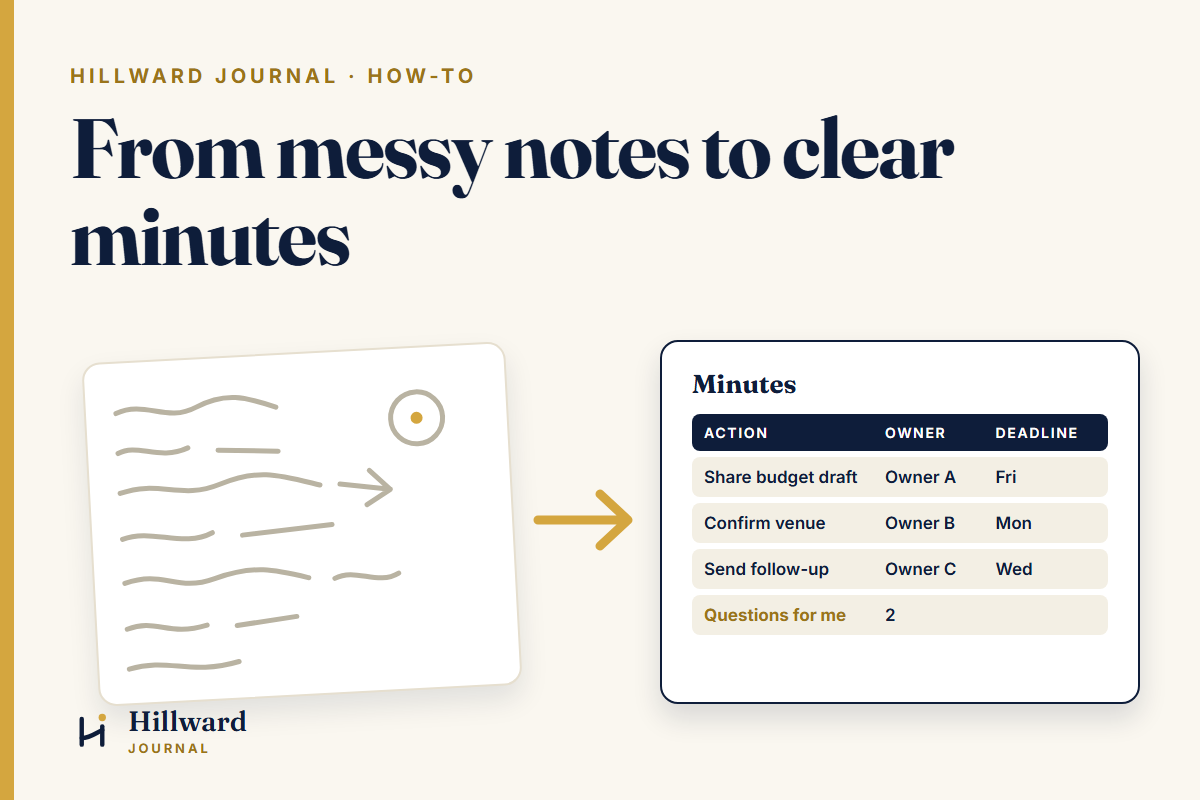
The meeting ends. You have two pages of notes in your book, half of them arrows and abbreviations, and someone says, “Please circulate the minutes today.”
That evening you sit down to rewrite everything. You try to remember who said what, which decision was final and which was “let’s revisit”, and whether the deadline was Friday or the Friday after.
This is one of the most common jobs in any office, and one of the best places to start using AI. Not because AI was in the meeting (it was not), but because turning rough notes into a clean, structured document is exactly the kind of work it does well. Your job is to bring the facts. Its job is to bring the structure.
Here is the method, step by step.
Step 1: Clean your notes before AI sees them
Type up your notes as they are. Do not tidy them; messy is fine. But before you paste anything into an AI tool, take out what does not belong there: personal details about staff, salary figures, health matters, client names you are not cleared to share, anything confidential.
Replace them with simple labels such as “Staff member A” or “Client X”. You can put the real names back at the end.
If you are not sure what counts as sensitive, our Start here page has a short guide on what never goes into an AI tool. Read it once and it becomes a habit.
Step 2: Tell the AI what kind of document you want
AI does better work when it knows the setting. Before your notes, give it three things:
- What the meeting was: for example, “a monthly management meeting of a 12-person team”.
- Who will read the minutes: your manager, the whole team, a board.
- The format you want: most offices want the same parts every time: attendees, agenda items, key points, decisions, and action points with an owner and a deadline.
Step 3: Use a prompt like this
Copy this, change the parts in brackets, and paste your cleaned notes underneath:
You are helping me write the minutes of a meeting. The meeting was [type of meeting]. The minutes will be read by [audience].
Using only the notes below, write clear, professional minutes with these sections: Attendees, Agenda items, Key points discussed, Decisions made, Action points (a table with Action, Owner and Deadline).
Rules: Do not add anything that is not in my notes. If something is unclear or missing (for example, an action with no owner or no deadline), do not guess. List it at the end under “Questions for me”.
My notes: [paste your cleaned notes here]
That last rule is the most important line in the prompt. It tells the tool to admit what it does not know instead of filling the gap with something that sounds right.
Step 4: Answer its questions
Look at the “Questions for me” list first. These are the gaps in your notes: the action nobody owned, the date that was never agreed. Answer them in the chat, and ask it to update the minutes.
Sometimes the questions are a gift. They show you what the meeting itself left unclear, and you can follow up with the right person before the minutes go out.
Step 5: Check every fact yourself
This step is not optional. AI tools can produce statements that sound confident but are wrong. The industry calls these “hallucinations”. OpenAI’s own help guide for ChatGPT says the tool is not always right and encourages users to treat it as a first draft and check important information.
So read the draft against your notes and check four things:
- Names: is every person and role correct?
- Numbers: figures, amounts, percentages.
- Dates: every deadline, matched against your notes.
- Decisions: did the meeting really decide this, or only discuss it?
Then put back the real names you removed in Step 1. The minutes go out under your name, so the final check is yours.
Step 6: Save the prompt and reuse it
Once the prompt works for your office, save it in a document or your phone’s notes app. Next time, you only paste new notes. Over a few meetings, adjust it: add your organisation’s usual headings, or ask for a short summary paragraph at the top for busy readers.
This is how AI stops being an occasional experiment and becomes part of how you work.
What AI should not decide
AI can organise your notes. It cannot tell you what the meeting meant. It does not know the tension in the room, the decision your MD quietly reversed at the end, or which action is politically delicate. That judgment is yours, and it is the part of the job that makes you valuable.
That is the heart of how we teach AI at Hillward: AI is a thinking partner, not a shortcut. It clears the slow, repetitive part of the work so you have more time for the part that needs you.
Your next step
Try this with the notes from your next meeting. Just one meeting. See how long the minutes take, and what you still had to fix.
If you are new to using AI at work, start with our Start here page. It covers how to write a good prompt, how to build the habit one task a week, and what to keep out of AI tools.
What is the one document in your week you would most like to stop writing from scratch?
One useful idea, every Thursday.
The Hillward weekly note: a short tip, tool or lesson in plain English. Unsubscribe any time.
We use your email only to send the weekly note. Privacy policy
Sources
- OpenAI Help Center, “Does ChatGPT tell the truth?” (checked 6 Oct 2026): https://help.openai.com/en/articles/8313428-does-chatgpt-tell-the-truth
- OpenAI, “Why language models hallucinate” (definition of hallucinations, checked 6 Oct 2026): https://openai.com/index/why-language-models-hallucinate/